
Two ways to add Urdu captions to a CapCut video
Finish the Urdu caption design in Capflair and bring the video into CapCut, or carry only the subtitle text and timing as an SRT. Choose the route that fits what you still need to edit.
Free plan: 2 minutes of transcription a month, watermarked exports, all styles.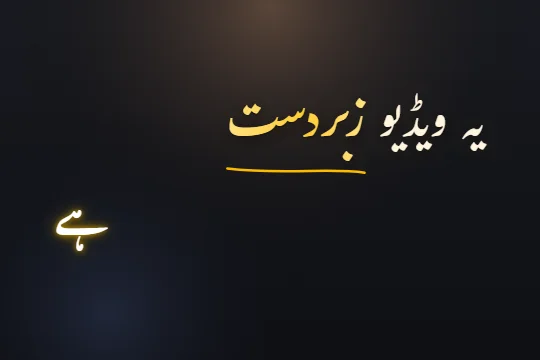 Edit sample text and scrub its word highlights. This preview does not transcribe audio.
Prepare Urdu captions in three steps
- STEP 1
Finish the picture edit
Export the clip you want to caption. Keeping the cut stable avoids having to retime captions later.
- STEP 2
Generate and correct in Capflair
Use Urdu or Roman Urdu output. Review spelling, names and cue timing while listening to the finished cut.
- STEP 3
Choose video or SRT
Export a captioned video for the finished look. Download SRT for editable subtitle text in CapCut desktop or web.
Route A: bring in the finished captioned video
Use this route when you want to preserve Nastaliq lettering, animated highlights and per-word design. In Capflair, choose the style, place the captions and export the video. Import that exported video into your CapCut project as a video clip.
The captions are now part of the picture. CapCut can trim or crop the clip, but it cannot edit those words as separate subtitle layers. Make spelling corrections in Capflair and export again. Avoid cropping away the lower third or covering the captions with another text layer.
If you still plan to change the cut, keep an uncaptioned copy as well. Cutting a captioned clip halfway through a phrase can make the remaining text confusing. A locked picture edit gives the cleanest handoff between the two tools.
Route B: import a subtitle file on desktop or web
Generate the transcript in Capflair, fix the words and timing, then download its SRT. Import that file through the subtitle import controls in your CapCut desktop or web project. Use the same source cut so the cue times line up with the audio.
An SRT carries numbered text cues with start and end times. It does not carry Capflair’s fonts, motion, colours or individual word positions. Set the look again in the receiving editor and preview the Urdu script there. Keep the SRT as UTF-8 text when editing it outside either app.
If Urdu letters or spacing look wrong
First check the actual preview and a short test export in your version of CapCut. Try a font that supports Urdu, keep the line short and inspect dots and joined letters. This guide does not claim that every CapCut version has the same Urdu behaviour.
If the receiving editor cannot reproduce your chosen Urdu look, use Route A. A rendered captioned video keeps the type in the picture, so it does not depend on the next editor’s subtitle font support. Roman Urdu SRT is another option when your audience is comfortable with Latin letters.
A quick check before the final export
Play the first caption, a line in the middle and the final caption. Compare the highlight or cue start with the voice. Check that the text is clear on a phone and that your later overlays leave it visible.
Save the source cut, the corrected transcript and the captioned export with clear filenames. If someone asks for a word change, you can return to the caption project instead of rebuilding the transcript from the final video.
Limits, stated plainly
- CapCut menus and import availability can vary by version and platform. The documented SRT route here is desktop or web.
- SRT imports do not preserve Capflair animation or font choices.
- The free plan includes 2 minutes of transcription a month, all caption styles and watermarked video exports. Online checkout is opening soon; ask support about a manual upgrade.
Questions
Can I import SRT directly in CapCut mobile?
CapCut’s current help says direct import is unavailable in the mobile app. Use its desktop or web import route, or import a rendered captioned video on mobile.
Will an imported SRT look like my Capflair captions?
No. SRT carries text and cue times. Choose the fonts and styling again in the receiving editor.
Which route keeps Nastaliq and animations?
Export the captioned video from Capflair and import that video into CapCut.
Can I fix a word after importing the captioned video?
Return to Capflair, correct the word and export again. The word is part of the picture in the video route.
Related
Caption your next video in minutes
Upload a clip, check the words, pick a style and export. No card needed to start.